

Revit Dockable Pane
A Dockable Pane is a user interface element that seamlessly integrates into Revit's native docking window system. It allows developers to create custom, persistent panels similar to the native Properties or Project Browser palettes.
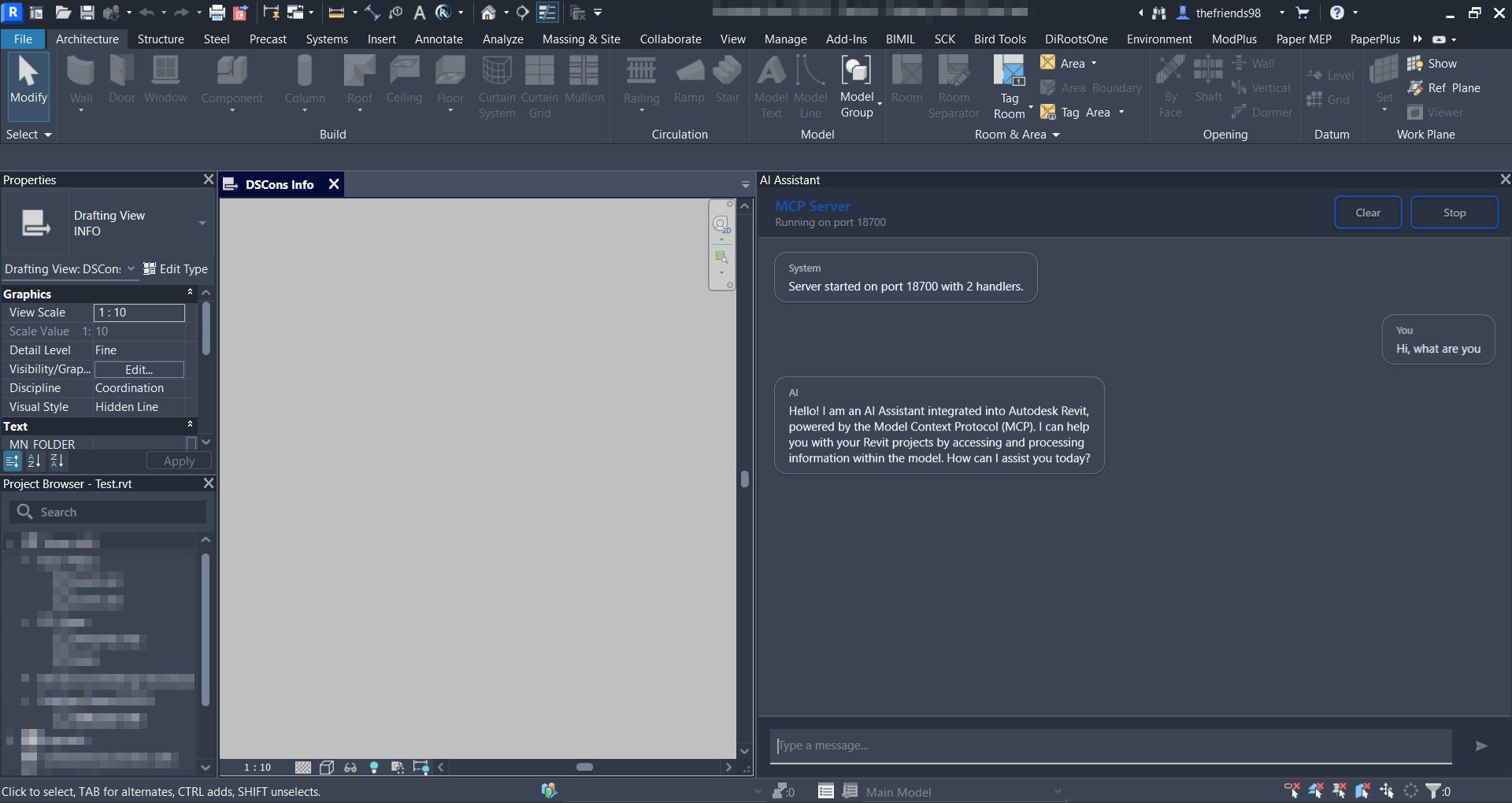
In this guide, we will walk through the correct and native way to implement a Dockable Pane using the Revit API and WPF.
Step 1: Create the User Interface
First, we need to create the UI content for our pane. We will use a WPF Window (or Page) that implements the IDockablePaneProvider interface.
Here is the XAML layout:
<Window
    x:Class="DockablePaneDemo.Revit.Views.DockablePanePage"
    xmlns="http://schemas.microsoft.com/winfx/2006/xaml/presentation"
    xmlns:x="http://schemas.microsoft.com/winfx/2006/xaml"
    xmlns:d="http://schemas.microsoft.com/expression/blend/2008"
    xmlns:local="clr-namespace:DockablePaneDemo.Revit.Views"
    xmlns:mc="http://schemas.openxmlformats.org/markup-compatibility/2006"
    Title="DockablePanePage"
    Width="800"
    Height="450"
    DataContext="{Binding RelativeSource={RelativeSource Self}}"
    mc:Ignorable="d">
    <Grid>
        <TextBlock
            HorizontalAlignment="Center"
            VerticalAlignment="Center"
            FontSize="24"
            FontStyle="Italic"
            Text="HELLO WORLD!" />
    </Grid>
</Window>
Next, we implement the Code-Behind. Notice how we implement the IDockablePaneProvider and define a unique Guid so Revit can identify our pane.
using Autodesk.Revit.UI;
using System;
using System.Windows;

namespace DockablePaneDemo.Revit.Views
{
    /// <summary>
    /// Interaction logic for DockablePanePage.xaml
    /// </summary>
    public partial class DockablePanePage : Window, IDockablePaneProvider
    {
        /// <summary>A unique GUID for this dockable pane.</summary>
        public static readonly Guid PaneGuid = new("12D977B9-6D7B-4DE8-BAE4-6508CA2A255C");

        public DockablePanePage()
        {
            InitializeComponent();
        }

        public void SetupDockablePane(DockablePaneProviderData data)
        {
            data.FrameworkElement = this;
            data.InitialState = new DockablePaneState
            {
                DockPosition = DockPosition.Right,
#if !REVIT2019
                MinimumWidth = 400
#endif
            };
        }
    }
}
Step 2: Register the Dockable Pane
A Dockable Pane must be registered during Revit's startup process. Open your App.cs class and register it inside the OnStartup method.
public static DockablePaneId DockablePaneId => new DockablePaneId(DockablePanePage.PaneGuid);

public Result OnStartup(UIControlledApplication application)
{
    // Initialize and register dockable panes
    SetupDockablePane(application);

    return Result.Succeeded;
}

private static void SetupDockablePane(UIControlledApplication application)
{
    // Instantiate the page and register it with Revit
    var page = new DockablePanePage();
    application.RegisterDockablePane(DockablePaneId, "My Dockable Pane", page);
}
Step 3: Create a Toggle Command
Users need a way to show or hide the pane. We will create an IExternalCommand to act as a toggle switch for visibility.
using Autodesk.Revit.Attributes;
using Autodesk.Revit.DB;
using Autodesk.Revit.UI;
using System;
using System.Windows;

namespace DockablePaneDemo.Revit.Commands
{
    [Transaction(TransactionMode.Manual)]
    [Regeneration(RegenerationOption.Manual)]
    public class DockablePaneDemoCmd : IExternalCommand
    {
        public Result Execute(ExternalCommandData commandData, ref string message, ElementSet elements)
        {
            try
            {
                // Retrieve the registered pane using its ID
                var dockablePane = commandData.Application.GetDockablePane(App.DockablePaneId);

                if (dockablePane != null)
                {
                    // Toggle visibility
                    if (dockablePane.IsShown())
                        dockablePane.Hide();
                    else
                        dockablePane.Show();
                }
            }
            catch (Exception ex)
            {
                MessageBox.Show($"Failed to toggle dockable pane: {ex.Message}", "Error");
            }

            return Result.Succeeded;
        }
    }
}
Step 4: Create a Ribbon Button
Finally, let's add a PushButton to the Revit Ribbon so users can easily execute our command. Add this ribbon initialization logic to your App.cs.
private string _tabName = "DockablePane Demo";

private void InitializeRibbon(UIControlledApplication application)
{
    try
    {
        application.CreateRibbonTab(_tabName);
        var ribbonPanel = application.CreateRibbonPanel(_tabName, "Tools");

        // Assuming you have a method to create button data
        // var buttonData = new PushButtonData(...);
        // ribbonPanel.AddItem(buttonData);
    }
    catch (Exception ex)
    {
        System.Diagnostics.Debug.Print($"Error creating ribbon: {ex.Message}");
    }
}
Conclusion
By following these steps, you can successfully implement robust and native-feeling Dockable Panes in your Revit Add-ins.
Source Code: GitHub Repository
Comments
Please login to post a comment.