

Turn Telegram into an Infinite Cloud Drive with TelDrive
Turn Telegram into an "Infinite" Cloud Drive for Free with TelDrive
The ultimate storage solution leveraging Telegram's infrastructure, supporting direct mounting to Windows as a network drive.
About TelDrive
If you've ever dreamed of a cloud storage service with unlimited capacity and zero cost, TelDrive is the answer.
Written in Go for superior performance and low resource consumption, TelDrive acts as a sophisticated layer to organize and access your Telegram files like a pro.
In this article, I'll share how I set up TelDrive completely for free and used it as a powerful, reliable, and unlimited storage tool.
TelDrive GitHub: tgdrive/teldrive
- Superior Speed: Multi-threaded optimization thanks to the Go language.
- Material You Design: Modern, intuitive interface with full Dark Mode support.
- Rclone Integration: Easily mount as a drive (Z:, Y:...) on Windows/macOS/Linux.
- Robust Security: Protect your data with advanced encryption layers.
Prerequisites
1. Telegram Account
Sign up at Telegram Messenger to create an account.
2. Private Telegram Channel
Create a channel and set it to Private for file storage.
3. PostgreSQL Database
Use Supabase for free database hosting. Highly recommended.
4. Docker
Deploy via Docker Compose for a stable and manageable environment.
Step-by-Step Installation
Step 1: Create Account and Private Channel
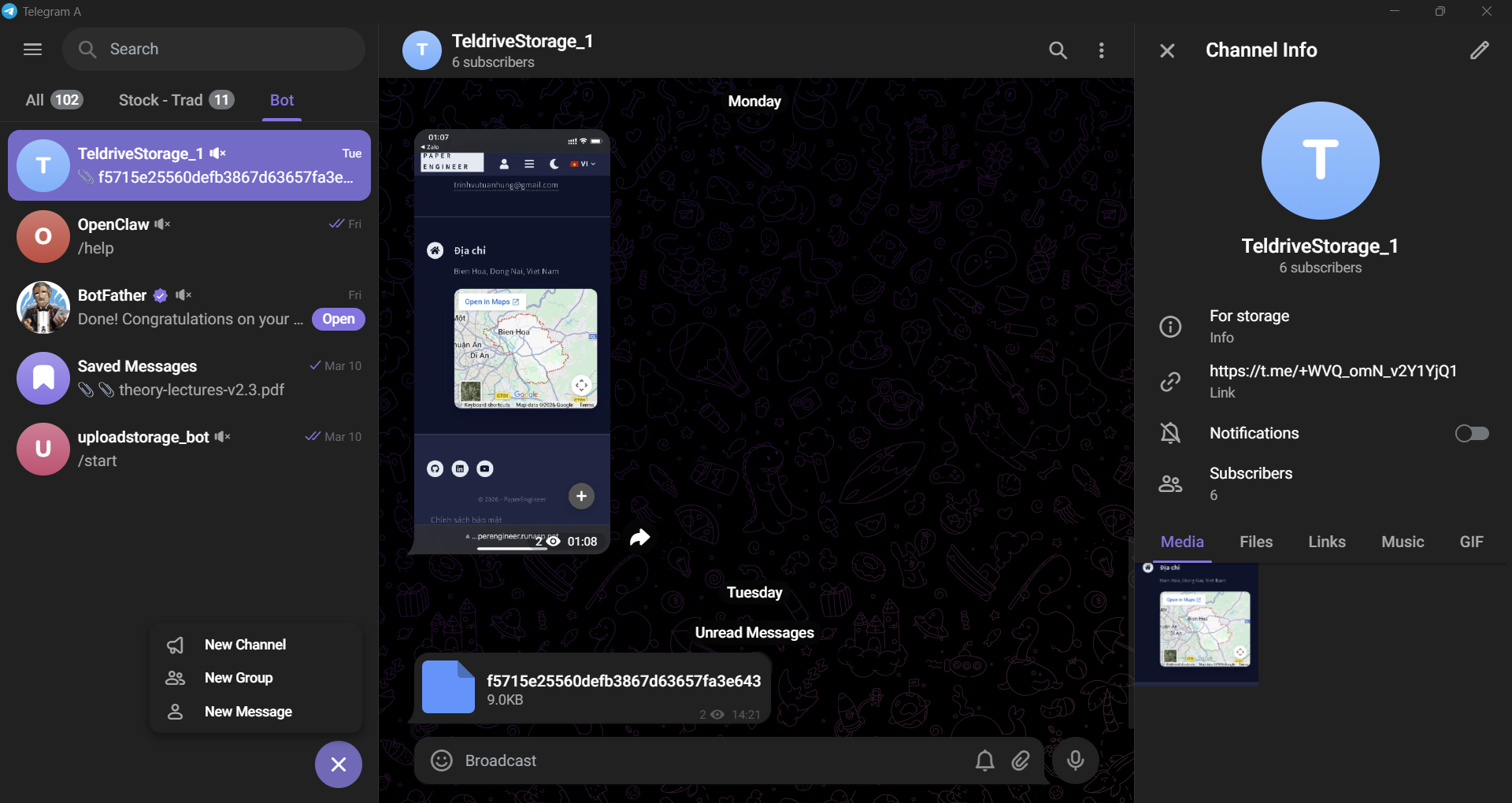
Creating a Telegram account is simple and free. Once registered, create a new Channel and select Private Channel. This will be your "infinite" storage vault.
Step 2: Create Bots via BotFather (Essential for speed)
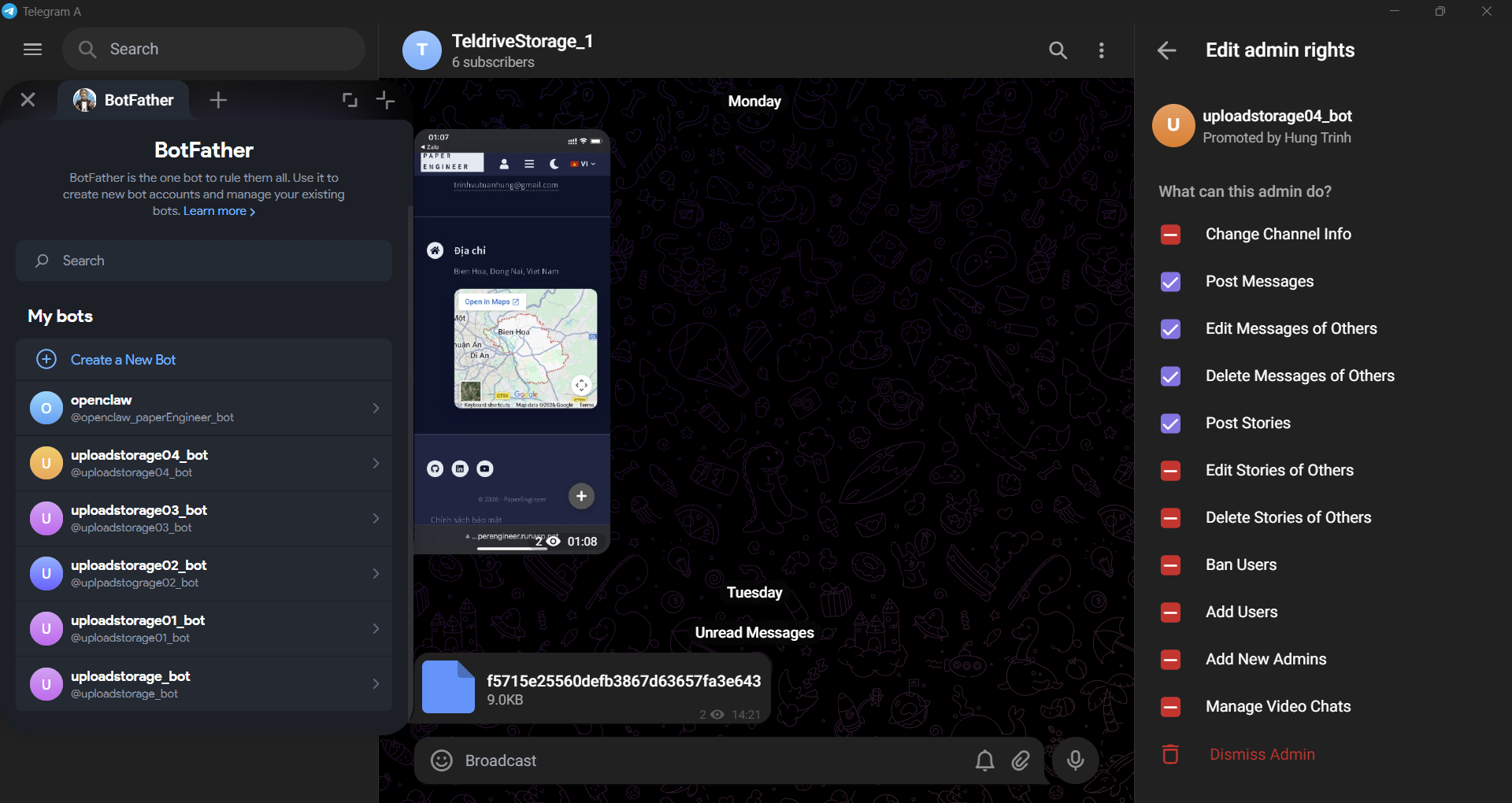
To avoid rate limits and increase speed, create multiple Telegram Bots (up to 5). Each bot will handle parallel uploads/downloads.
- Chat with @BotFather on Telegram.
- Use
/newbotcommand and save the HTTP API Token. - Repeat this for multiple bots and add them all as Administrators to your channel.
Note: Limit yourself to maximum 5 bots. More bots don't necessarily increase speed and may trigger Telegram Flag risks.
Step 3: Install Docker
Ensure Docker is installed on your machine. Download it from Docker.com.
Verify the installation with PowerShell:
docker --version
docker compose version
If you see Docker version xxxxx and Docker Compose version xxx, you're good to go.
Step 4: Deploy with Docker Compose
Create a new directory for TelDrive and create a docker-compose.yml file inside. Here is a configuration using Local PostgreSQL:
version: "3.9"
services:
  postgres:
    image: groonga/pgroonga:latest-alpine-17
    container_name: postgres_db
    restart: always
    environment:
      POSTGRES_USER: teldrive
      POSTGRES_PASSWORD: secret
      POSTGRES_DB: postgres
    volumes:
      - postgres_data:/var/lib/postgresql/data
    networks:
      - teldrive_net

  redis:
    image: redis:7
    container_name: redis_cache
    restart: always
    networks:
      - teldrive_net

  teldrive:
    image: ghcr.io/tgdrive/teldrive
    container_name: teldrive
    restart: always
    depends_on:
      - postgres
      - redis
    volumes:
      - ./config.toml:/config.toml
      - ./storage.db:/storage.db
    networks:
      - teldrive_net
    ports:
      - "8081:8080"    # Add this line for direct testing
    expose:
      - "8080"
    deploy:
      resources:
        limits:
          memory: 4G        # Provide enough RAM for large uploads

  nginx:
    image: nginx:latest
    container_name: teldrive_nginx
    restart: always
    ports:
      - "8080:80"
    volumes:
      - ./nginx.conf:/etc/nginx/nginx.conf
    depends_on:
      - teldrive
    networks:
      - teldrive_net

networks:
  teldrive_net:

volumes:
  postgres_data:
Next, create a config.toml file in the same directory:
[db]
data-source = "postgres://teldrive:secret@postgres/postgres"
prepare-stmt = false

[db.pool]
enable = false

[jwt]
allowed-users = ["YOUR_USER_NAME"]
secret = "YOUR_SECRET_KEY"
expiry = "87600h"

[tg]
app-id = YOUR_APP_ID
app-hash = "YOUR_API_HASH_KEY"
ntp = false

[tg.uploads]
encryption-key = "YOUR_ENCRYTION_KEY"
chunk-size = "512MB"
max-retries = 10
workers = 16

# Add this section
[server]
enable-webdav = true

[redis]
addr = "redis:6379"
db = 0YOUR_USER_NAME: Your Telegram username (without the "@").YOUR_SECRET_KEY: Any long string for JWT encryption (at least 64 chars). Obtain from Teldrive Usage Guide.YOUR_APP_ID and YOUR_API_HASH_KEY: Obtain from my.telegram.org.YOUR_ENCRYPTION_KEY: Any string for file encryption. Generate at Teldrive Usage Guide.
Then, create an nginx.conf file in the same directory:
events {
  worker_connections 1024;
}

http {
  client_max_body_size 0;
  proxy_request_buffering off;
  proxy_buffering off;
  proxy_connect_timeout 3600s;
  proxy_send_timeout 3600s;
  proxy_read_timeout 3600s;

  server {
    listen 80;

    location / {
      # Allow all methods including WebDAV
      if ($request_method !~ ^(GET|HEAD|POST|PUT|DELETE|OPTIONS|PROPFIND|PROPPATCH|MKCOL|COPY|MOVE|LOCK|UNLOCK)$) {
        return 405;
      }

      proxy_pass http://teldrive:8080;
      proxy_http_version 1.1;
      proxy_set_header Upgrade $http_upgrade;
      proxy_set_header Connection "upgrade";
      proxy_set_header Host $host;
      proxy_set_header X-Real-IP $remote_addr;
      proxy_set_header X-Forwarded-For $proxy_add_x_forwarded_for;
      proxy_set_header Destination $http_destination;
      proxy_pass_request_headers on;
      proxy_request_buffering off;
      proxy_buffering off;
      client_max_body_size 0;
    }
  }
}
Once ready, start the environment with:
docker compose up -dTo stop the environment:
docker compose downThen double check the steps above if it fails.
Step 5: Web UI Configuration
Go to http://localhost:8080 and follow these final steps:
- Login: Use your Telegram phone number.
- Add Bots: Under Settings -> Account, paste your Bot Tokens from Step 2.
- Link Channel: Select your Storage Channel.
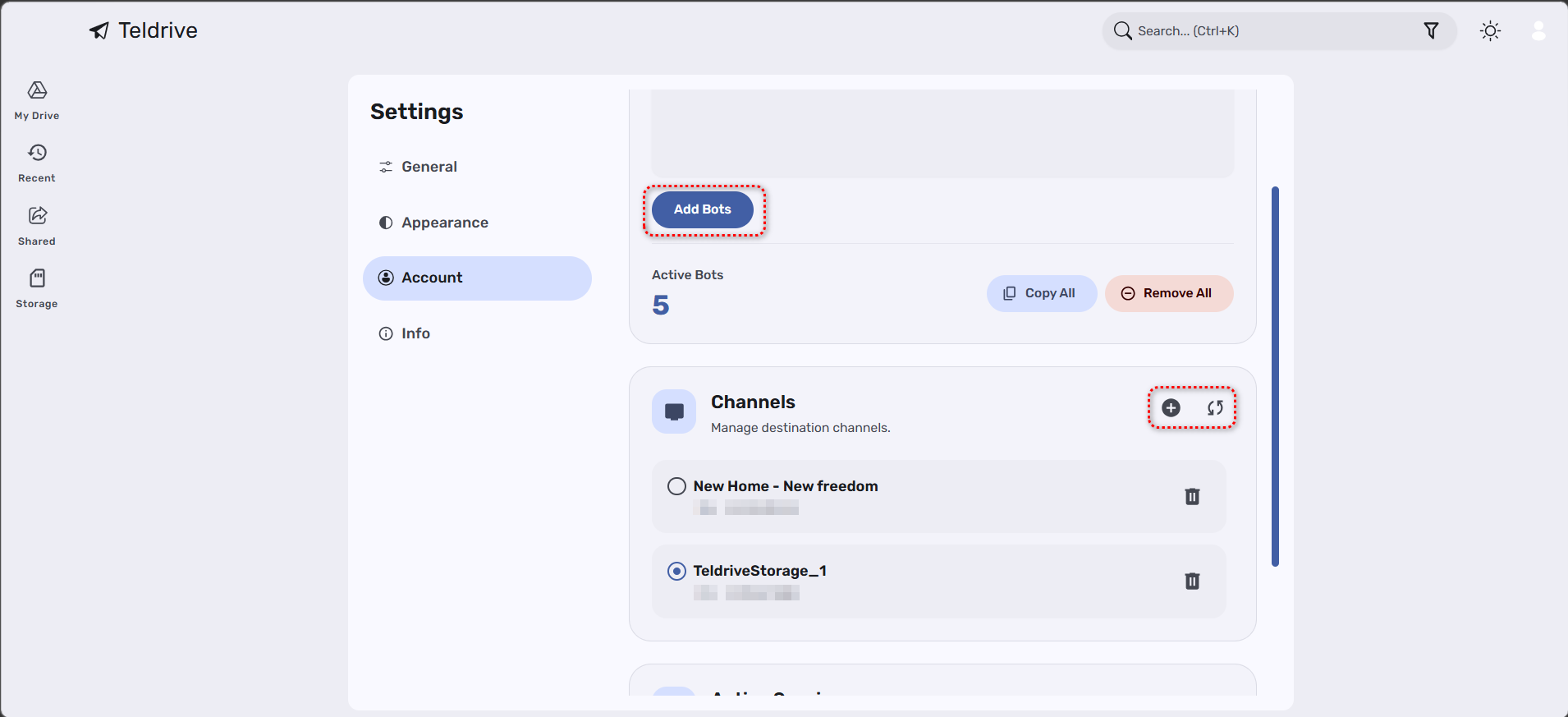
Test the setup by uploading a file at http://localhost:8080 or directly in your Telegram channel. If they sync, you're all set! ✅
Step 6: Mount Drive with Rclone (Optional)
This is the crucial step to transform Telegram into an actual drive in My Computer.
First, download and install WinFsp. This driver allows Windows to mount drives from non-physical sources.
Install Rclone with the TelDrive plugin using PowerShell:
powershell -c "irm https://instl.vercel.app/rclone?platform=windows|iex"Then, go to http://localhost:8080, press F12 → Application tab → Cookies → find access_token → copy its value.
Finally, configure Rclone by navigating to a folder (e.g., C:\rclone) and running PowerShell:
# Rclone config
n                        ← New remote
name> teldrive
Storage> teldrive        ← Type "teldrive" (not webdav)
access_token>            ← Paste access_token here
api_host>                ← http://localhost:8080
chunk_size>              ← Enter to skip (default 512MB)
page_size>               ← Enter to skip
channel_id> ID_CHANNEL   ← Your TelDrive Channel ID (found in settings)
upload_host>             ← Enter to skip
                         ← Enter through the rest
n                        ← Edit advanced config? No
y                        ← Keep this remote? Yes
q                        ← Quit
Once configured, mount the drive with PowerShell:
& "C:\Users\YOUR_USERNAME\.installer\bin\rclone.exe" mount teldrive: T: --vfs-cache-mode full --vfs-cache-max-size 20G --transfers 8 --buffer-size 64M --network-mode --dir-cache-time 5mOpen Windows Explorer → if drive T: appears, it's successful! ✅
To automatically mount on Windows startup:
- Create
mount.ps1:& "C:\Users\YOUR_USERNAME\.installer\bin\rclone.exe" mount teldrive: T: --vfs-cache-mode full --vfs-cache-max-size 20G --vfs-read-ahead 128M --transfers 8 --buffer-size 64M --network-mode --dir-cache-time 5m - Create
mount.vbs:
Make sure to adjust the folder paths to match your setup.CreateObject("Wscript.Shell").Run "powershell -WindowStyle Hidden -ExecutionPolicy Bypass -File C:\rclone\mount.ps1", 0, False - Press Win + R → type shell:startup → Enter. Copy the
mount.vbsfile (or its shortcut) into this folder.
To unmount, run this PowerShell command:
Get-Process | Where-Object {$_.Name -like "*rclone*"} | Stop-Process -ForceOr use an unmount.ps1 script:
Get-Process | Where-Object {$_.Name -like "*rclone*"} | Stop-Process -Force

# Remove T: drive from Explorer
$net = New-Object -ComObject WScript.Network
$net.RemoveNetworkDrive("T:", $true, $true)

Write-Host "Unmounted T: drive successfully!"
Start-Sleep 2
Step 7: Create Cloudflare Tunnel (Internet Access, Optional)
Cloudflare Tunnel allows you to access TelDrive from anywhere via a beautiful URL, completely free, without port forwarding or a static IP.
7.1 — Create Cloudflare Account
Visit cloudflare.com → Sign up for free → Confirm email.
7.2 — Create Tunnel
- Go to one.dash.cloudflare.com
- Select Networks → Tunnels → Create a tunnel
- Select Cloudflared → name it
teldrive→ Save tunnel - Select Docker → copy the token (e.g.,
eyJhIjoixxxxxx...)
7.3 — Add to docker-compose.yml
Open docker-compose.yml and add the cloudflared service at the end of the services section:
  cloudflared:
    image: cloudflare/cloudflared:latest
    container_name: cloudflared
    restart: always
    command: tunnel --no-autoupdate run
    environment:
      - TUNNEL_TOKEN=PASTE_TOKEN_HERE
    networks:
      - teldrive_net
7.4 — Configure Public Hostname
7.5 — Restart
docker compose up -dAccess TelDrive from anywhere via: https://drive.yourdomain.com/
⚠️ Important Note: If using the free Cloudflare Tunnel tier, lower chunk-size to 95MB in config.toml to avoid disconnection during large uploads. Cloudflare free limits request body size to 100MB.
[tg.uploads]
chunk-size = "95MB"
Step 8: Creating a Server (Optional)
For 24/7 availability and the most stable remote access, it is recommended to deploy TelDrive on a VPS (Virtual Private Server) or a dedicated virtual machine. This requires basic knowledge of server administration, Linux, and system security.
This setup ensures your TelDrive is independent of your personal computer and benefits from more stable internet connection. I will be publishing a detailed guide on how to deploy TelDrive to a server in the near future.
Optimization Tips & Troubleshooting
1. DB Connection Issue: If you encounter "broken pipe" errors, add prepare-stmt = false to your database configuration in config.toml.
2. 413 Payload Too Large: If using Nginx as a proxy, ensure client_max_body_size 0; is set and disable proxy_request_buffering.
3. Cloudflare Limits: On the free tier, lower chunk-size to 100MB to prevent upload disconnections.
Enjoy mastering your infinite storage space with TelDrive!
Comments
Please login to post a comment.